Exported Files
The Exported Files tab displays files that you and your team have exported from the gIQ platform. Use this tab to view, manage, and re-download previously exported files.
To access Exported Files, do the following:
-
Login to gIQ.
-
Click the Data module, click Data Directory, navigate to the Exported Files tab.
Viewing exported files
In this section, you will learn how to view the details of an exported file.
To view an exported file, do the following:
-
Login to gIQ.
-
Click the Data module, click Data Directory, navigate to the Exported Files tab.
-
View all the exported files in the Exported Files tab.
Searching exported files
In this section, you will learn how to search for specific exported files using the search functionality.
To search for an exported file, do the following:
-
Login to gIQ.
-
Click the Data module, click Data Directory, navigate to the Exported Files tab.
-
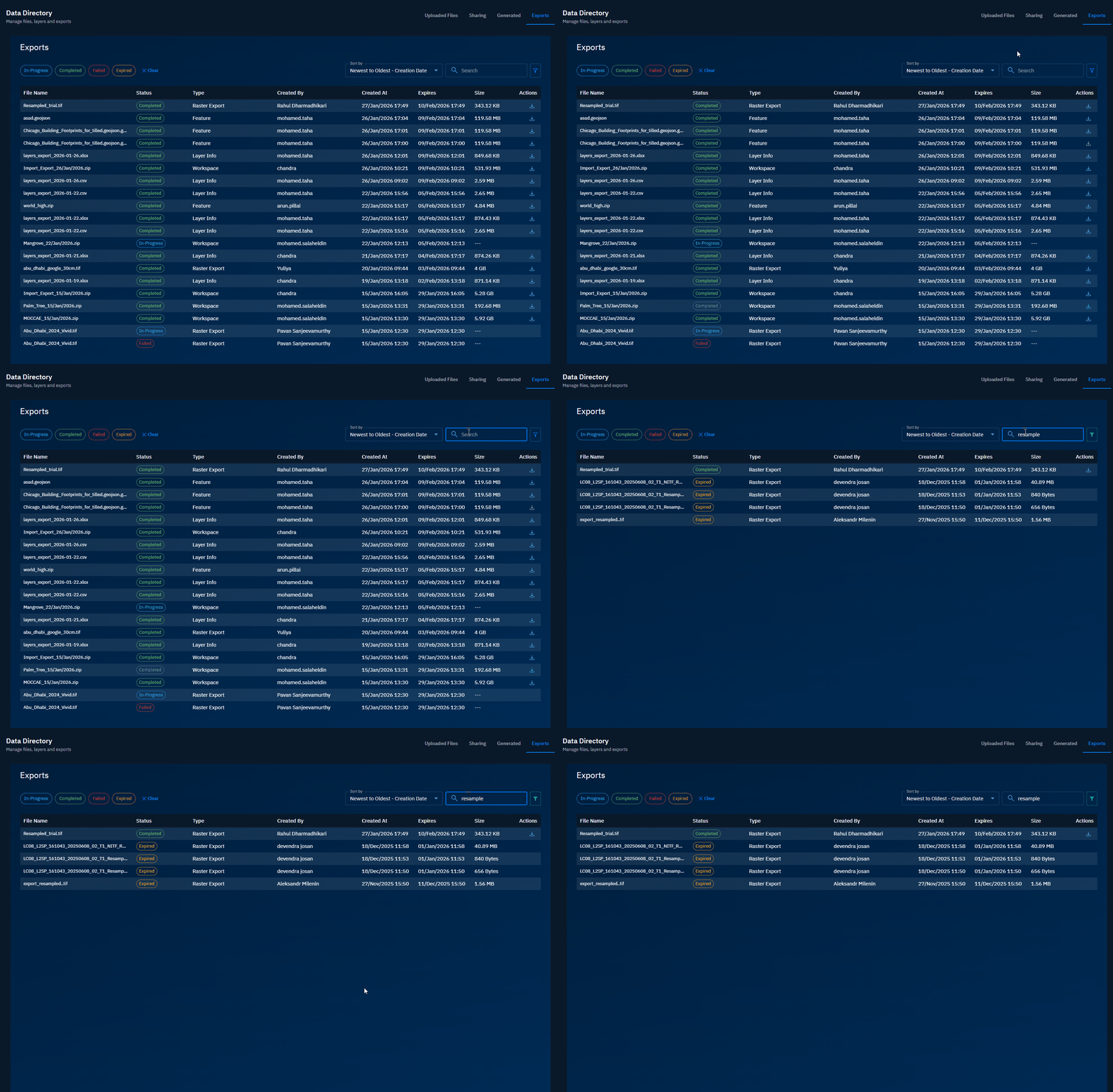
In the Search field, type the partial or full name of the file or file extension.
Sorting exported files
In this section, you will learn how to sort the exported files list to organize files based on specific criteria.
To sort exported files, do the following:
-
Login to gIQ.
-
Click the Data module, click Data Directory, navigate to the Exported Files tab.
-
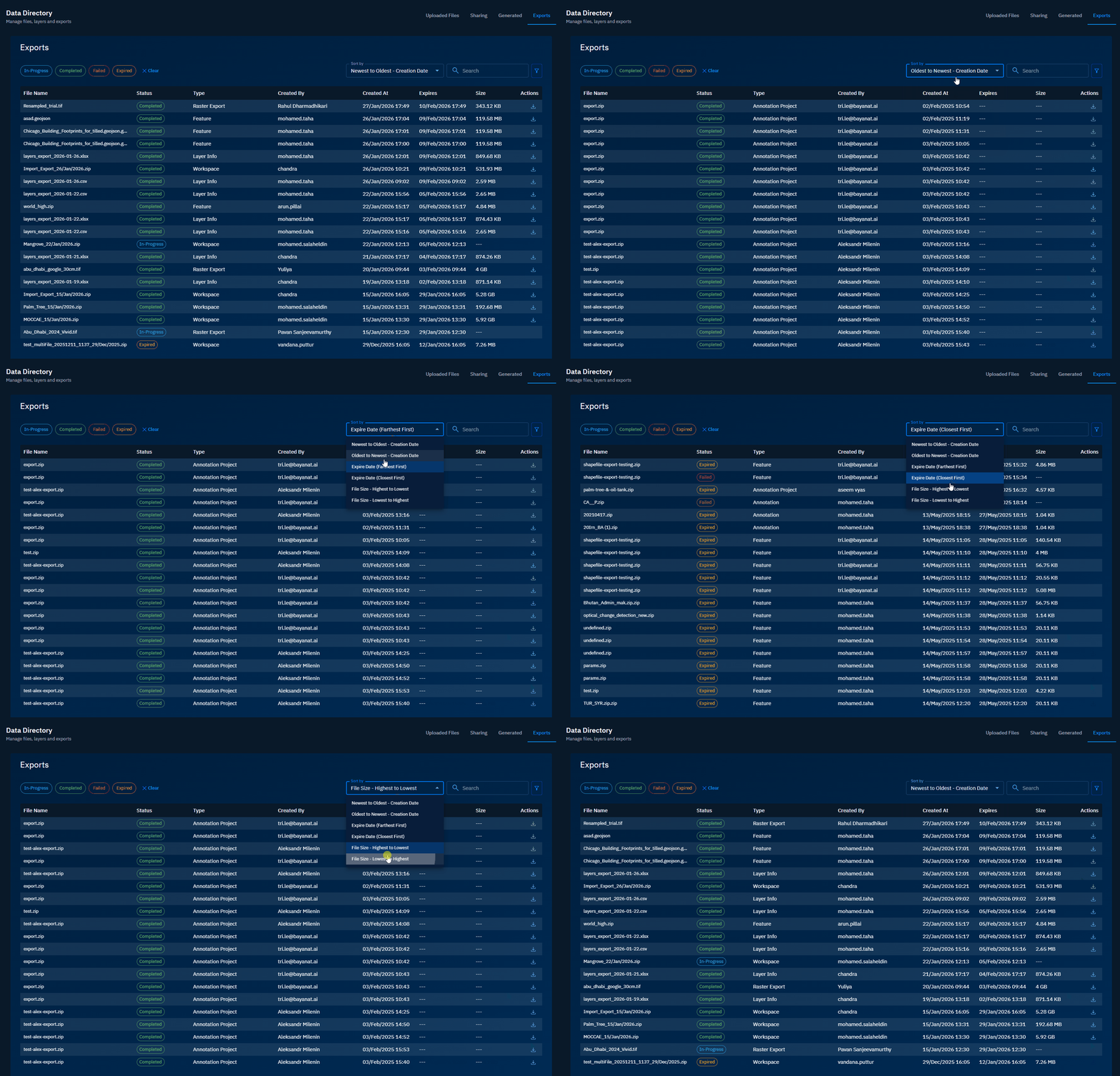
Click the Sort by drop-down list and do the following:
Sorting by status
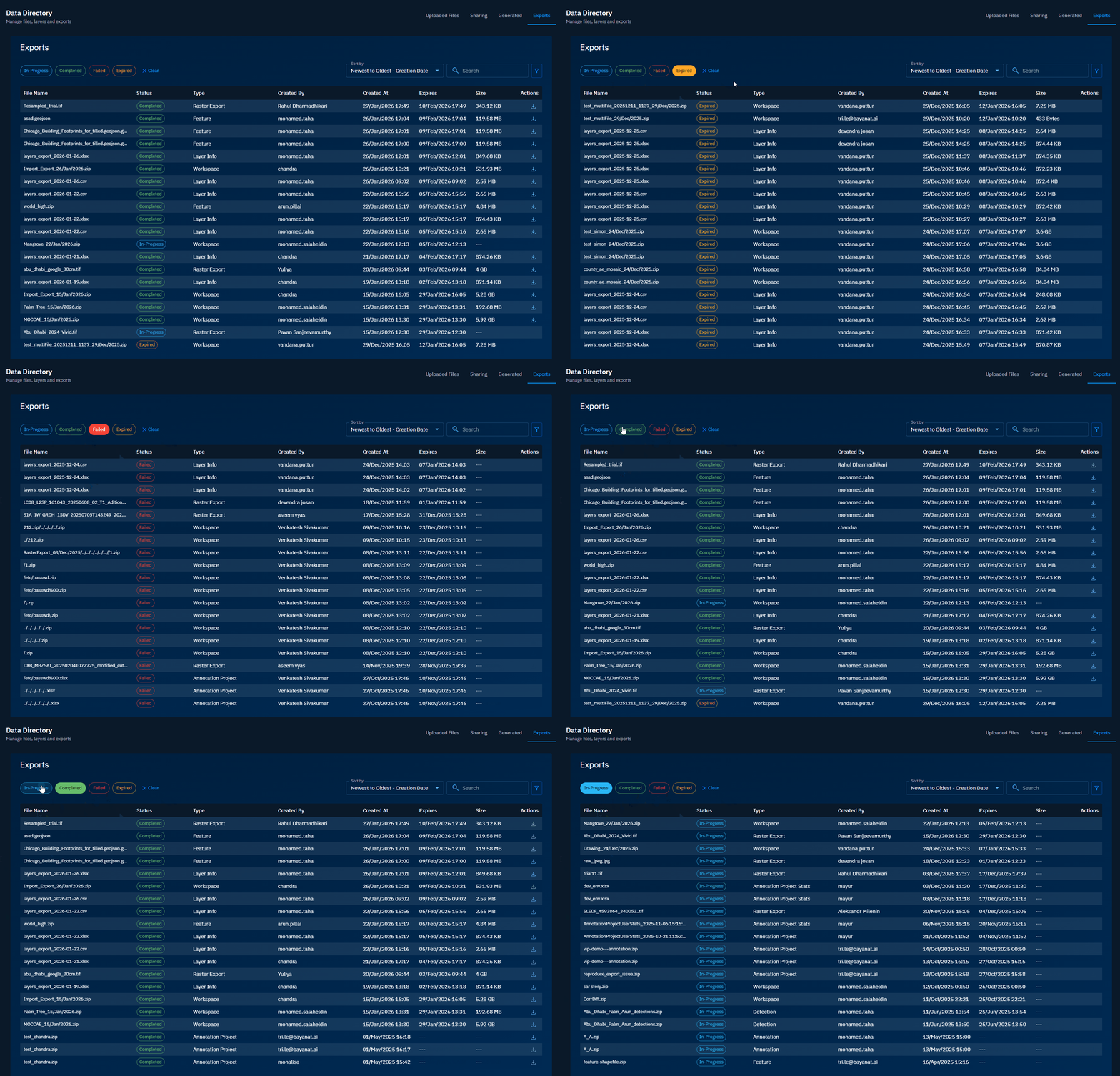
Sorting by status allows you to organize exported files based on their current state e.g., completed, pending, failed, expired?].
To sort exported files by status, do the following:
-
Login to gIQ.
-
Click the Data module, click Data Directory, navigate to the Exported Files tab.
-
Click the Status column header and do the following:
Filtering exported files
In this section, you will learn how to filter the exported files list based on specific criteria.
To filter exported files, do the following:
-
Login to gIQ.
-
Click the Data module, click Data Directory, navigate to the Exported Files tab.
-
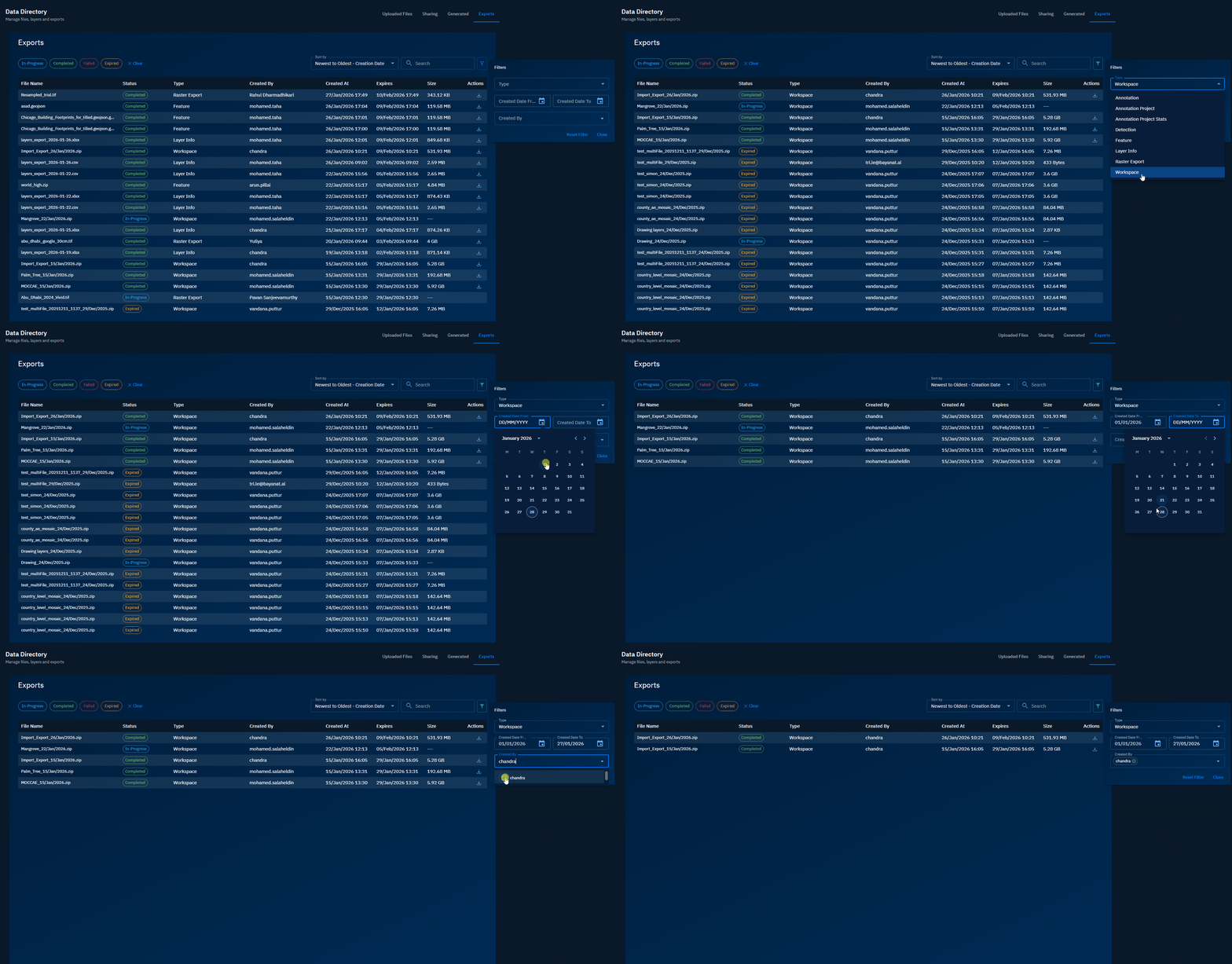
Click Filter icon and do the following:
Downloading exported files
In this section, you will learn how to download previously exported files to your local device.
To download an exported file, do the following:
-
Login to gIQ.
-
Click the Data module, click Data Directory, navigate to the Exported Files tab.
-
Locate the file you want to download and then click the Download icon of the respective file.
The file is successfully downloaded to the local computer.