Generated Files
The Generated Files tab provides access to files created through analytics processes—both platform-generated and those generated by you and your team.
To access Generated Files, do the following:
-
Login to gIQ.
-
Click the Data module, click Data Directory, navigate to the Generated Files tab.
Viewing generated files
In this section, you will learn how to view a generated file, including its layer metadata and job details.
To view a generated file, do the following:
- Login to gIQ.
- Click the Data module, click Data Directory, navigate to the Generated Files tab.
- Locate the file you want to view.
- [CONFIRM WITH QA: Click/double-click the file? Or use a View button/icon?]
The file opens in [CONFIRM WITH QA: a preview pane? a new window? a details panel?].
Viewing layer metadata
Layer metadata provides information about the data layer associated with a generated file.
To view layer metadata, do the following:
- Login to gIQ.
- Click the Data module, click Data Directory, navigate to the Generated Files tab.
- Locate the file whose layer metadata you want to view.
- [CONFIRM WITH QA: How does user access layer metadata—click a Metadata tab? Right-click > View Metadata? Expand a panel?]
The layer metadata includes [CONFIRM WITH QA: list metadata fields—layer name, creation date, coordinate system, feature count, etc.].
Viewing job details
Job details show information about the analytics process that generated the file.
To view job details, do the following:
-
Login to gIQ.
-
Click the Data module, click Data Directory, navigate to the Generated Files tab.
-
Locate the file whose job details you want to view and then simply select any file and do the following:
-
View the layer metadata of the selected file. The parameters are dependent on the type of file you have selected. For example, let's see the parameters of a .tif file:
Parameter Description Example ID Unique identifier for the layer a9fa7f6f-fb8a-11f0-b278-4b847900c01f Name Display name of the layer T39QZG_R020_20220801_RGB.tif File Name Original name of the uploaded file T39QZG_R020_20220801_RGB.tif Boundary Number of coordinate points defining the layer's geographic extent 12 points Ingestion Date Date and time when the file was uploaded to the platform 27/Jan/2026 18:15 Owner User who uploaded the file name of the owner of the file Acquisition Date Date when the imagery was originally captured 01/Jan/2026 Source Origin or provider of the data Airbus, Sentinel, Blacksky Source Type Category of imagery or data Multispectral Source Sub Type Subcategory within the source type DEFAULT Resolution Ground distance represented by each pixel 10.4358 m Max. Zoom Level Maximum zoom level at which the layer can be displayed 15 Width Horizontal dimension of the image in pixels 11733 Height Vertical dimension of the image in pixels 10788 Resampling Algorithm Method used to interpolate pixel values when resizing or reprojecting the image BILINEAR Spatial Resolution Ground distance represented by each pixel 10.4358 Shared With Users or groups who have access to this layer John, Robin, Robert -
View the details of analytics job:
Parameter Description Example Started At Date and time when the analytics job began 27/Jan/2026 15:29 Completed At Date and time when the analytics job finished 27/Jan/2026 15:54 Duration Total time taken to complete the analytics job 24m 55s Performed By User who initiated the analytics job mohamed.salim Target Layer Input layer on which the analytics were performed S1A_IW_GRDH_1SDV_2025.zip Output Layer(s) Resulting layer(s) generated from the analytics job GRD_processing_S1A_IW_GRDH_1SDV_20251004T110625_2025.tif Workflow Type of analytics process applied to the target layer GRD processing Digital Elevation Model Elevation data source used for terrain correction Auto Polarization Radar signal polarization mode used in processing VV Geometric Correction Method applied to correct geometric distortions Auto N Looks Number of looks used to reduce speckle noise in radar imagery 1
Searching generated files
In this section, you will learn how to search for specific generated files using the search functionality.
To search for a generated file, do the following:
-
Login to gIQ.
-
Click the Data module, click Data Directory, navigate to the Generated Files tab.
-
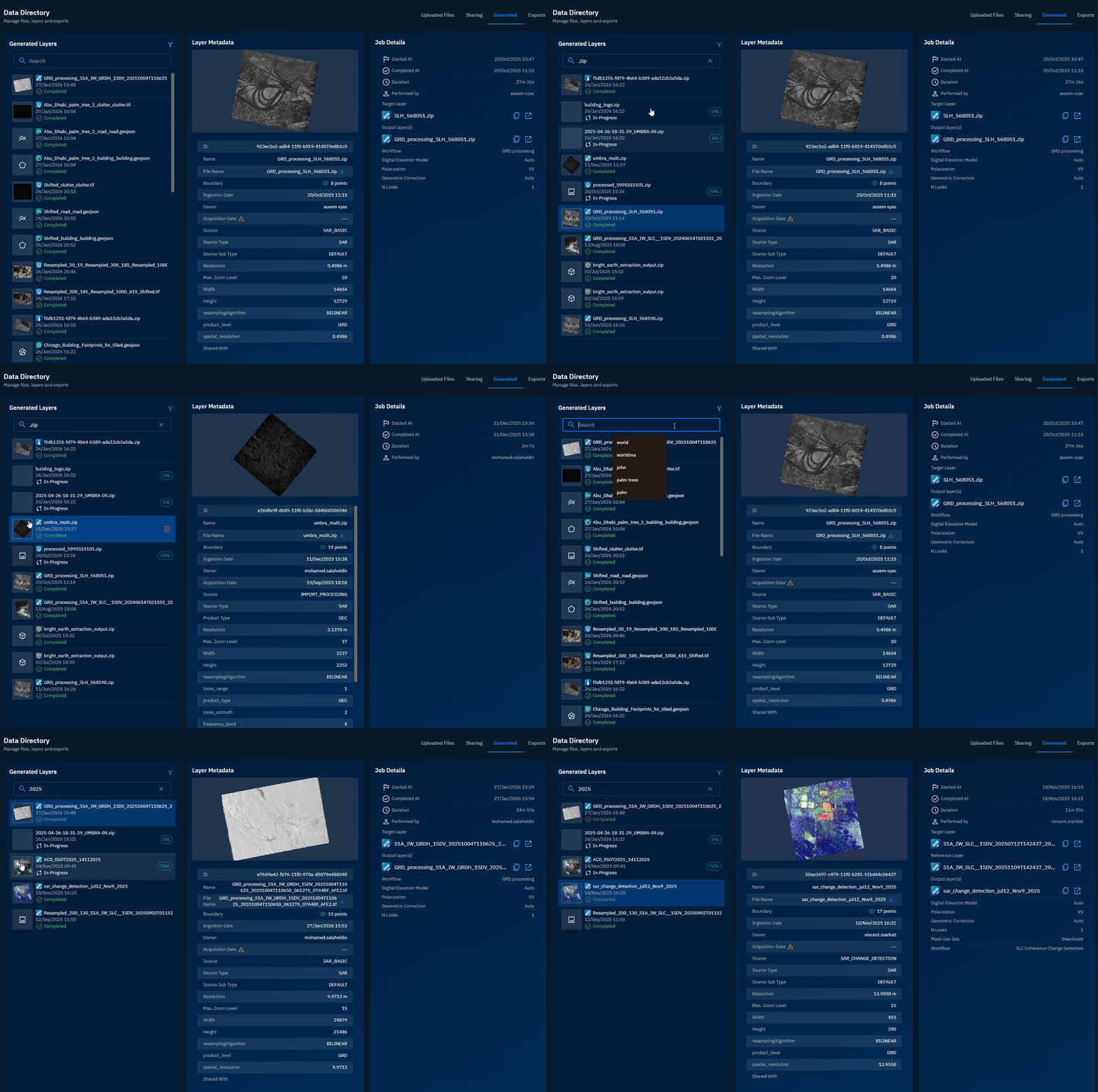
In the Search field, type the file extension or name of the file in the Search box.
The platform displays matching files as you type.
Filtering generated files
In this section, you will learn how to filter the generated files list based on specific criteria.
To filter generated files, do the following:
-
Login to gIQ.
-
Click the Data module, click Data Directory, navigate to the Generated Files tab.
-
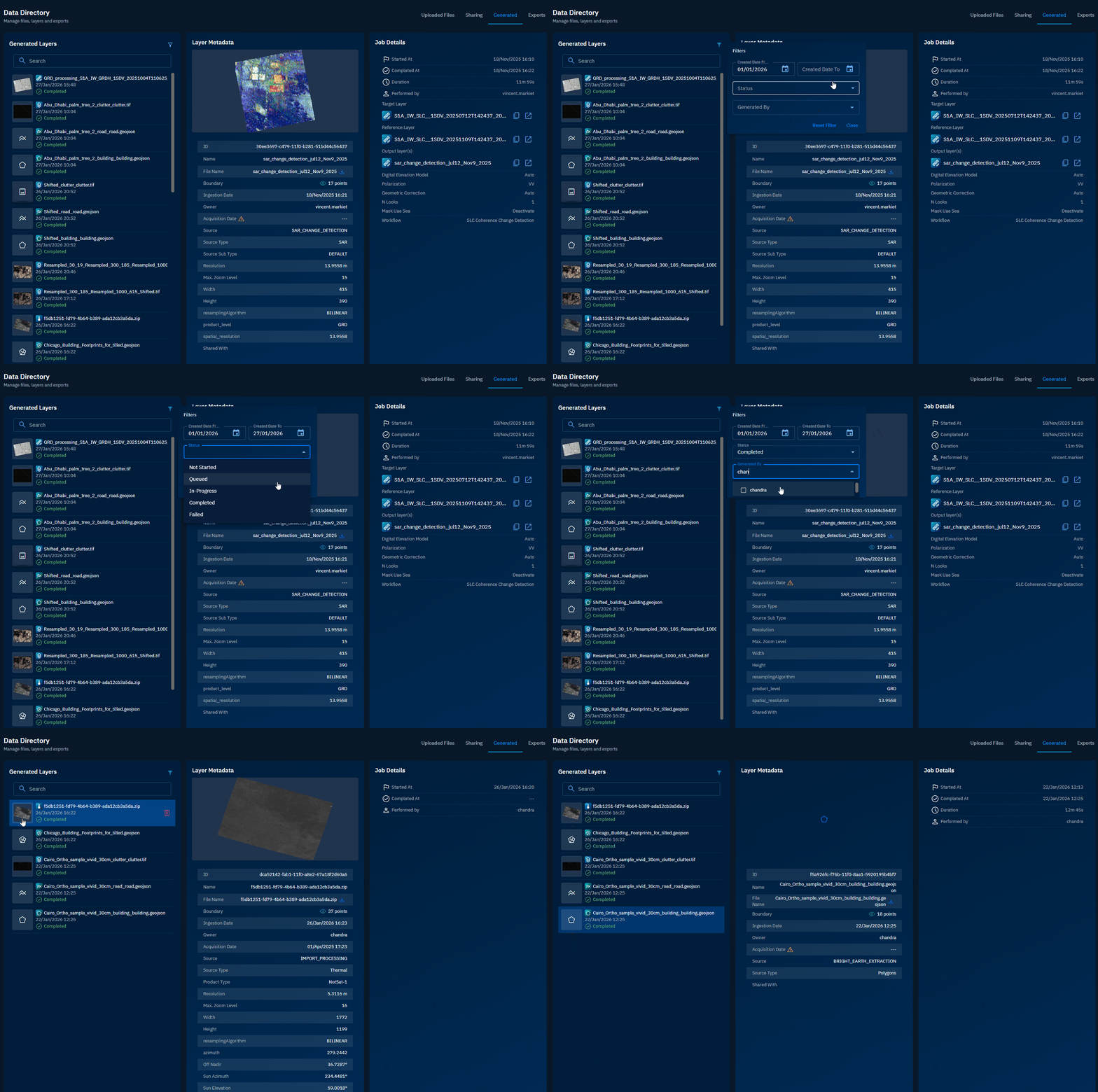
Click Filter icon.
The Filters dialog box is displayed.
-
In the Filters dialog box, do the following:
Deleting a generated layer
In this section, you will learn how to delete a generated layer/
You can delete files with Completed status only.
To delete a generated layer, do the following:
-
Login to gIQ.
-
Click the Data module, click Data Directory, navigate to the Generated Files tab.
-
In the Generated Files page, locate the file that you want to delete, hover over the file name, and then click the Delete icon.
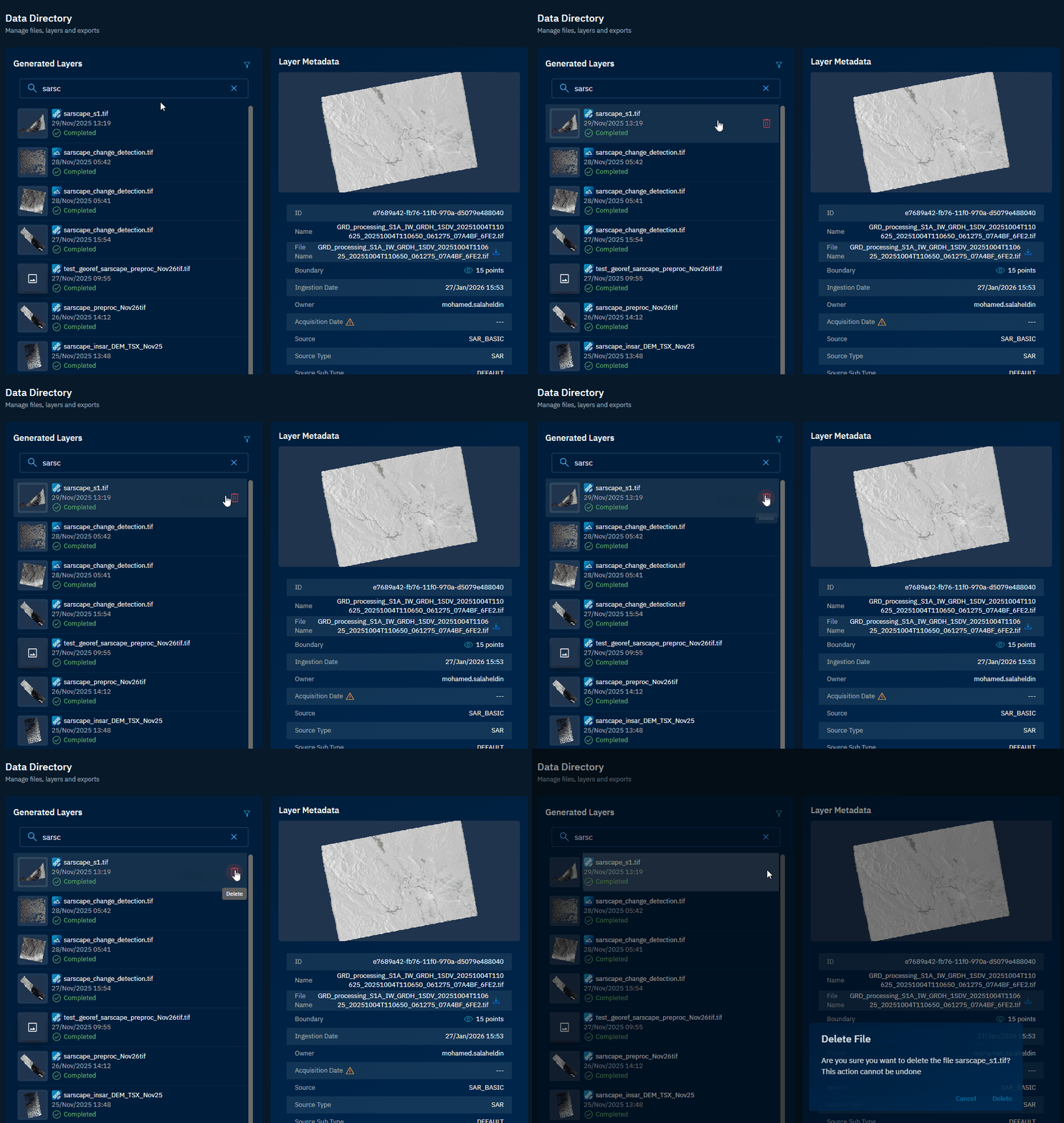
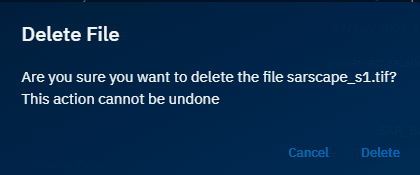
The Delete File dialog box is displayed.
-
In the Delete File dialog box, click the Delete button to permanently delete the file from the platform.
Downloading generated files
In this section, you will learn how to download generated files to your local device.
To download a file, do the following:
-
Login to gIQ.
-
Click the Data module, click Data Directory, navigate to the Generated Files tab.
-
Locate the file that you want to download and then select the file.
The file opens in a preview pane.
- In the Layer Metadata section, locate the File Name field and then click the Download icon to save the file on your local computer.
The file is successfully downloaded to your local computer.
Changing properties of a file
In this section, you will learn how to change the properties an output layer.
Currently you can change the following properties of a file:
- Name
- Acquisition Date
To change the properties an output layer, do the following:
-
Login to the platform.
-
Click the Data module, click Data Directory, navigate to the Generated Files tab.
-
Locate the file for which you want to change the parameters, and then do the following:
-
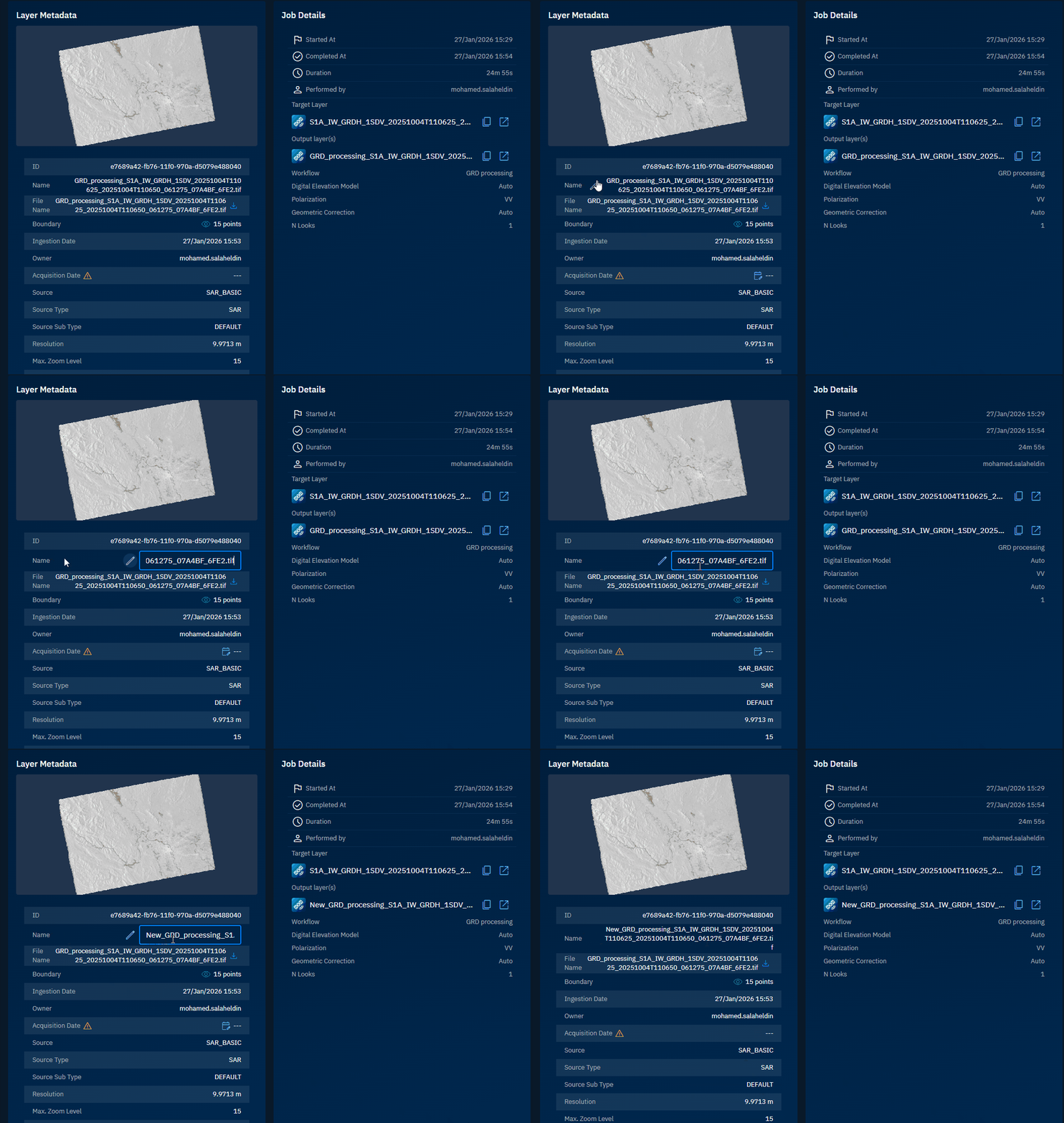
To change Name:
- Point to Name in the Layer Metadata section, click the Edit icon, and type a new name.
- Press Enter to save the name change.
-
To change Acquisition Date:
- Point to Acquisition Date in the Layer Metadata section, click the Edit Acquisition Date icon, select a new date and time, and click OK.
- Click OK in the Change Acquisition Date dialog box.
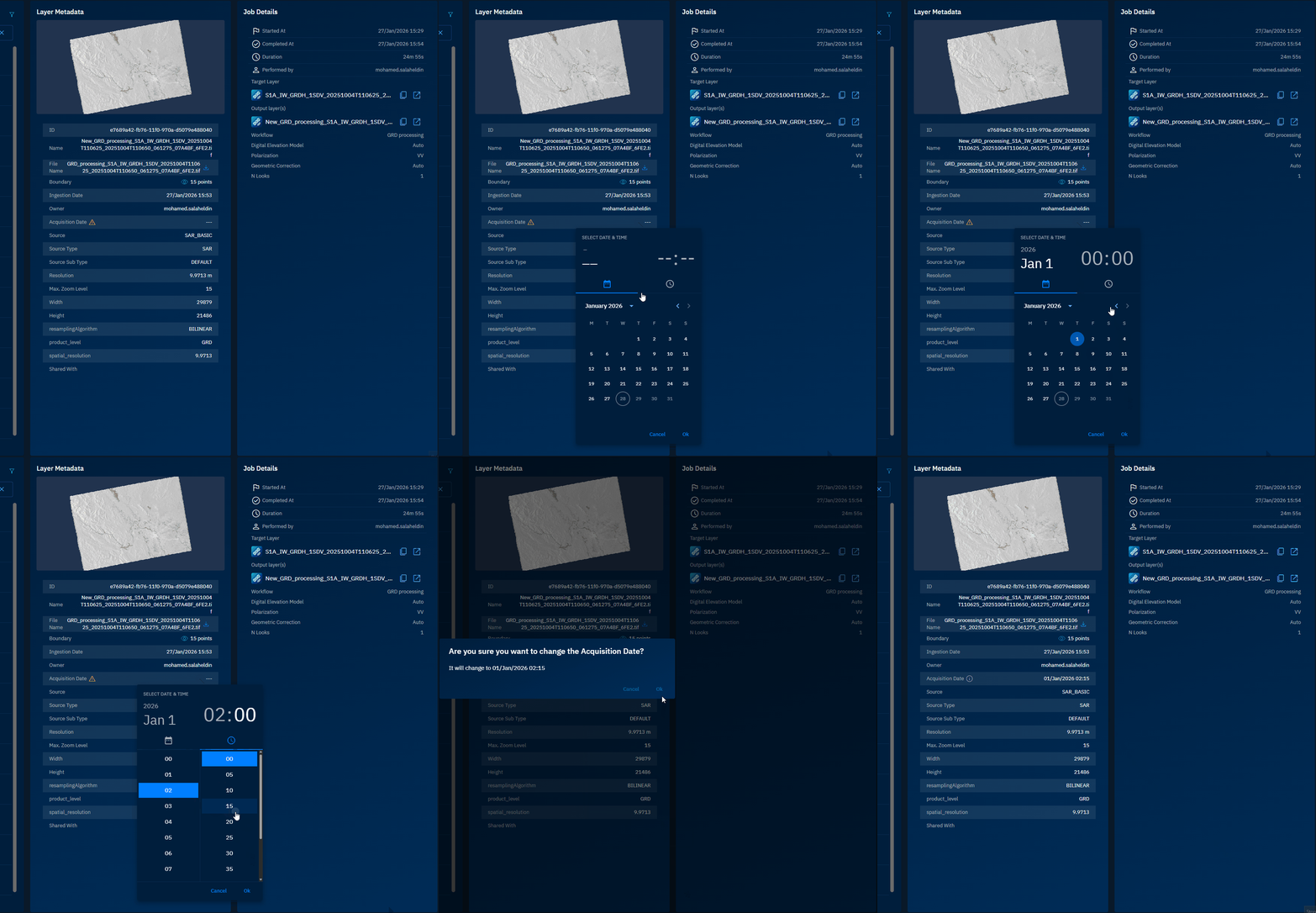
The parameters of the file are successfully changed in the platform.