Shared Files
The Shared Files tab provides a central location to access files involved in sharing: files team members have shared with you in the Shared With Us tab and files you have shared with team members in the Shared By Us tab. This enables you to easily collaborate on projects or distribute content within your organization.
In addition, you can also search, filter, delete and download files. Furthermore, you can change the properties of the file.
Shared With Us tab
As a member of an organization, team members may frequently share a number of files with you. The files that team members have shared with you are displayed in the Shared With Us tab.
Shared By Us tab
As a member of an organization, you may frequently share a number of files with your team members. The files that you have shared with your team members are displayed in the Shared By Us tab.
The following tasks function the same way in both the tabs.
Viewing files
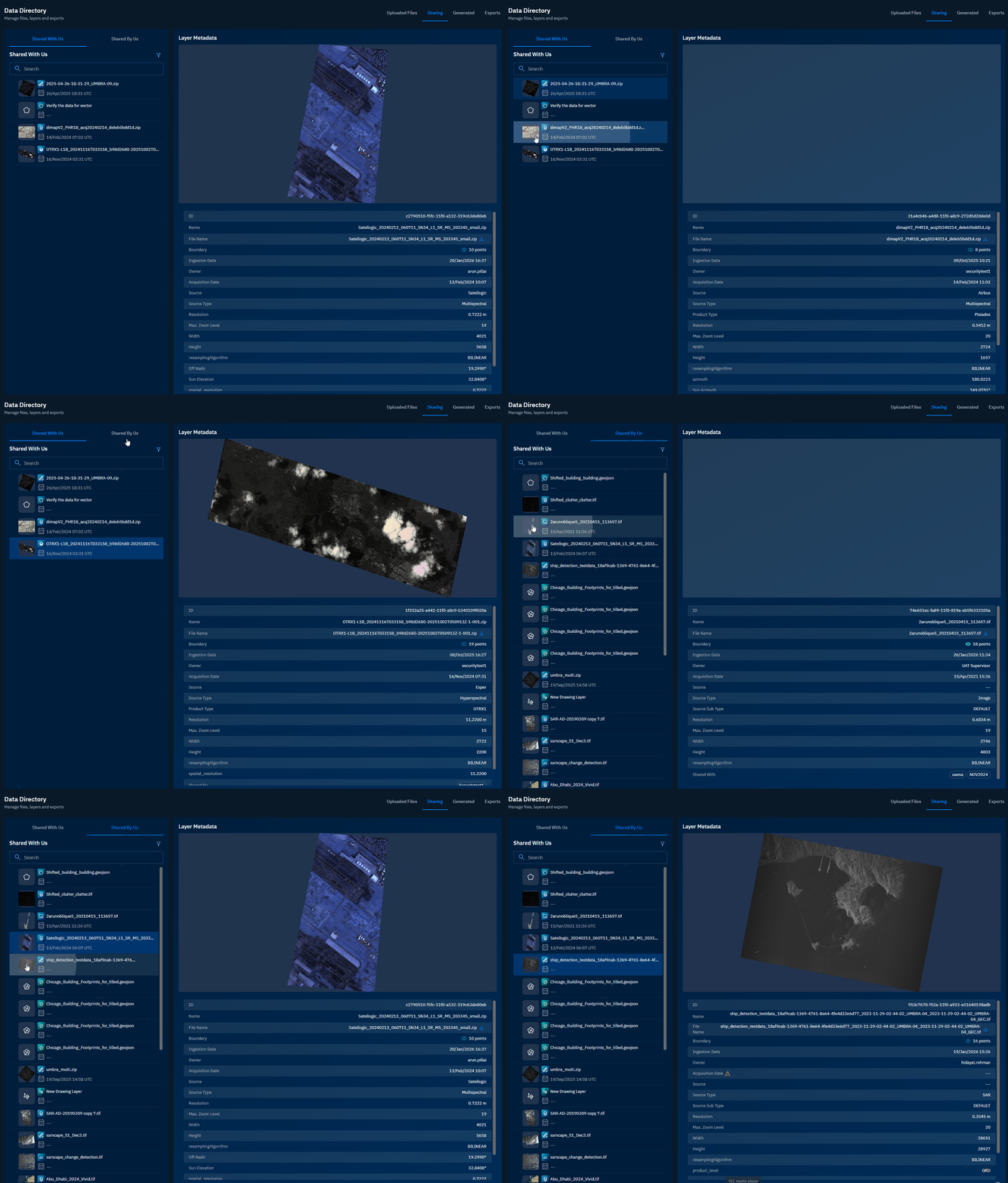
Get to view files and layer metadata in the Shared with Us and Shared by Us tabs. Depending on the file that you select, the parameters in the metadata will change.
To view a file, do the following:
-
Login to gIQ.
-
Click the Data module, click Data Directory, navigate to the Shared Files, and select the Shared With Us or Shared By Us tab.
-
Locate the file that you want to view and then select the file.
The file opens in the Layer Metadata section:
Searching files
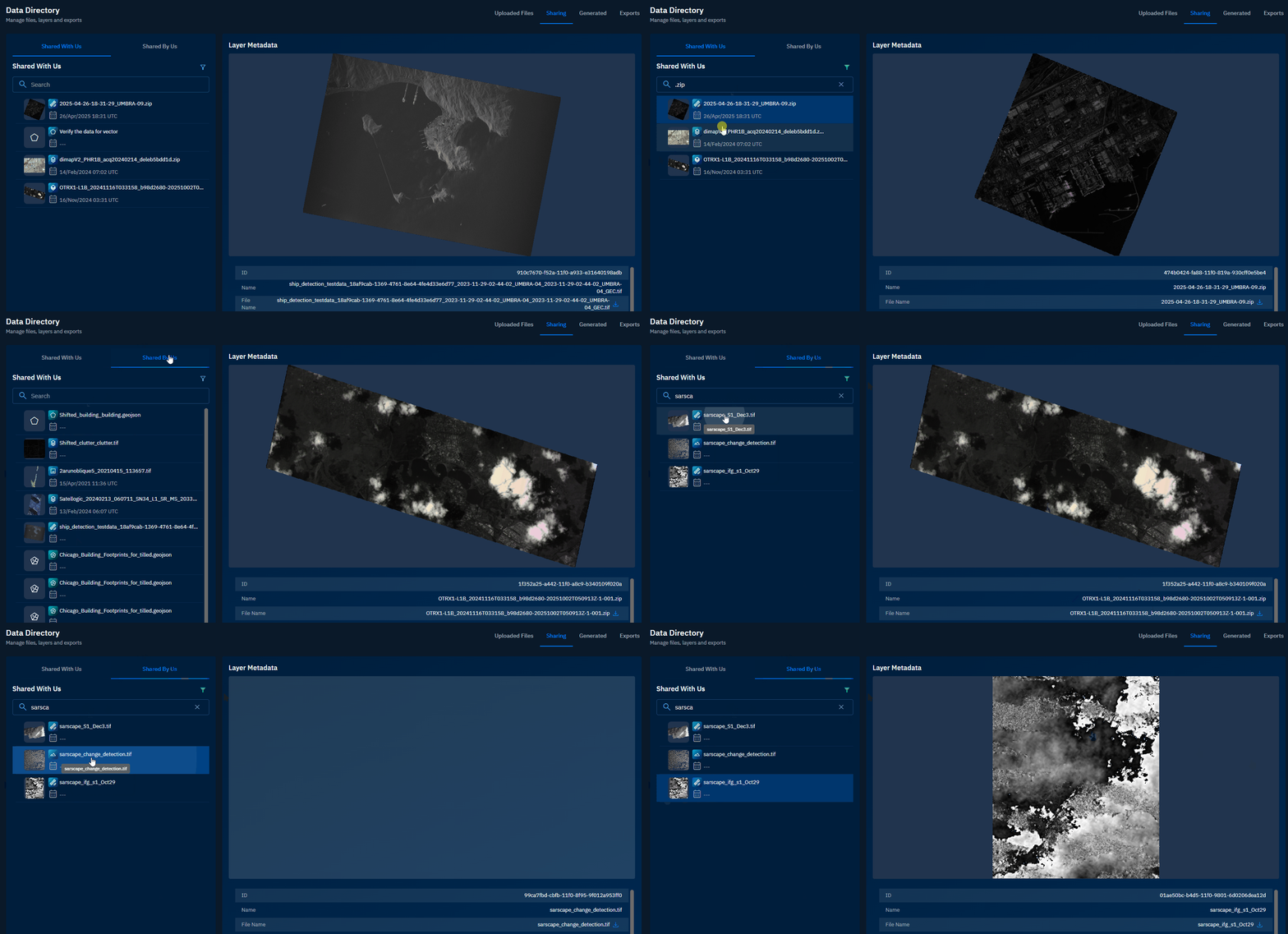
Search files by file name or the extension of the file.
To search a file, do the following:
-
Login to gIQ.
-
Click the Data module, click Data Directory, navigate to the Shared Files, and select the Shared With Us or Shared By Us tab.
-
In the Search field, type the name of the file. You can search by file name and file extension.
The platform displays matching files as you type.
Filtering files
-
Login to gIQ.
-
Click the Data module, click Data Directory, navigate to the Shared Files, and select the Shared With Us or Shared By Us tab.
-
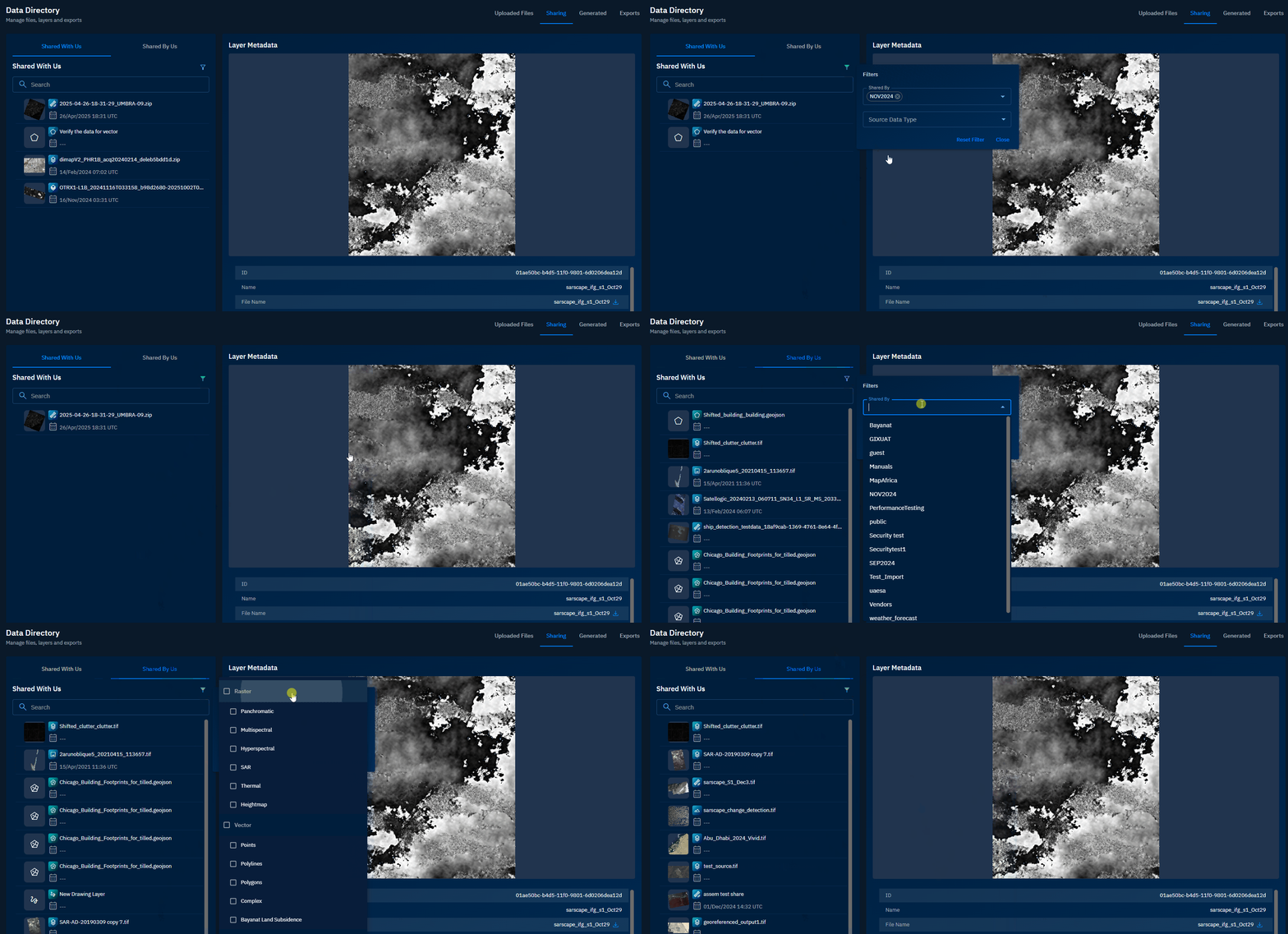
Click the Filter icon.
The Filters dialog box is displayed.
-
On the Filters dialog box, do the following:
-
Select the Shared by or Shared with drop-down list and then select name or names of organizations who have shared files or with whom you have shared files.
-
Select the Source Data Type drop-down list and then select type or types of data. For example, raster, vector, spatial, and so on.
-
The platform displays matching files as you type.
Downloading files
-
Login to gIQ.
-
Click the Data module, click Data Directory, navigate to the Shared Files, and select the Shared With Us or Shared By Us tab.
-
Locate the file that you want to download and then select the file.
The file opens in a preview pane.
- In the Layer Metadata section, locate the File Name field and then click the Download icon to save the file on your local computer.
The file is successfully downloaded to your local computer.
Changing file properties
In this section, you will learn how to change the properties a file.
Currently you can change the following properties of a file:
- Name
- Acquisition Date
To change the properties a file, do the following:
-
Login to the platform.
-
Click the Data module, click Data Directory, navigate to the Shared Files, and select the Shared With Us or Shared By Us tab.
-
Locate the file for which you want to change the parameters, and then do the following:
-
To change Name:
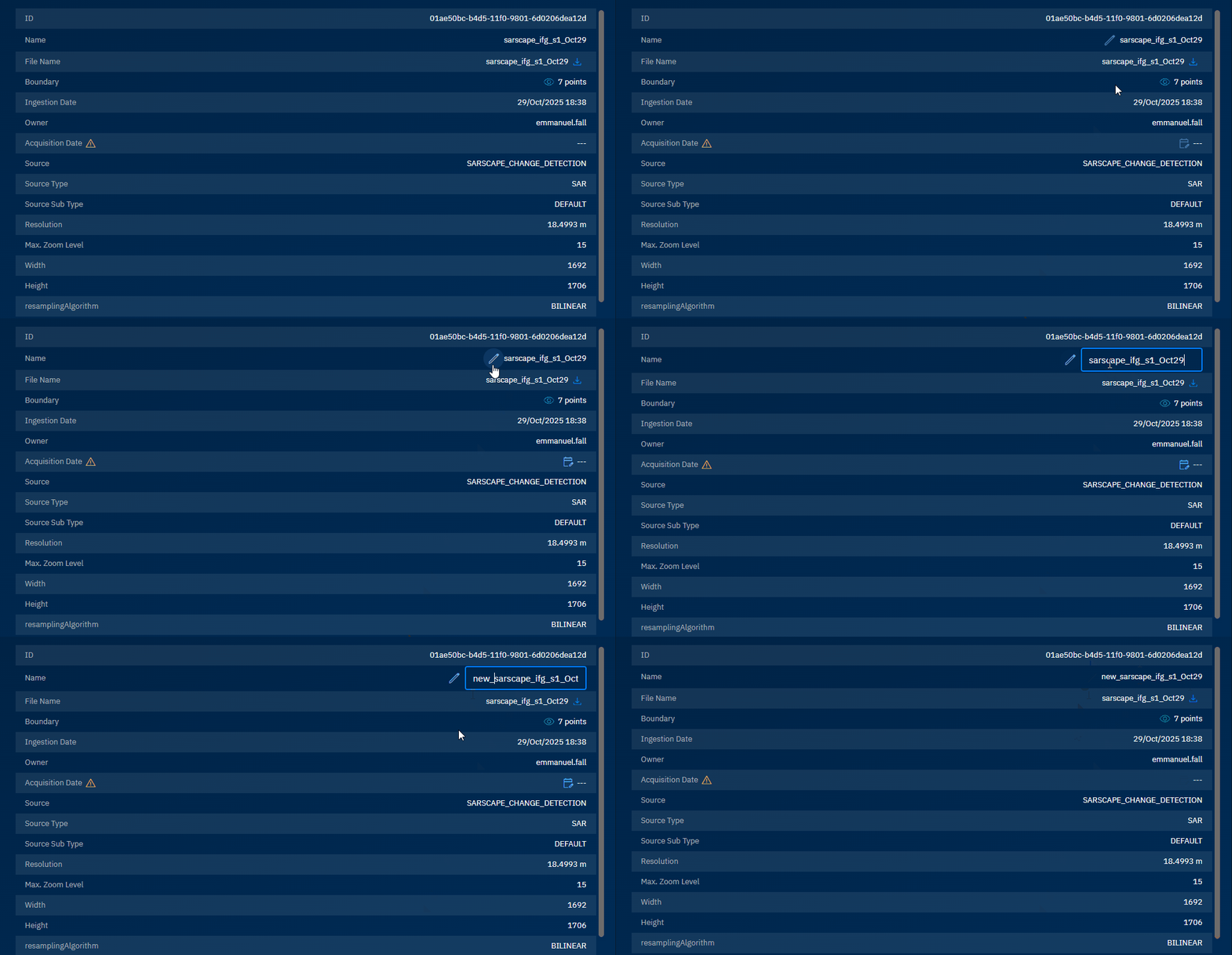
- Point to Name in the Layer Metadata section, click the Edit icon, and type a new name.
- Press Enter to save the name change.
-
To change Acquisition Date:
- Point to Acquisition Date in the Layer Metadata section, click the Edit Acquisition Date icon, select a new date and time, and click OK.
- Click OK in the Change Acquisition Date dialog box.
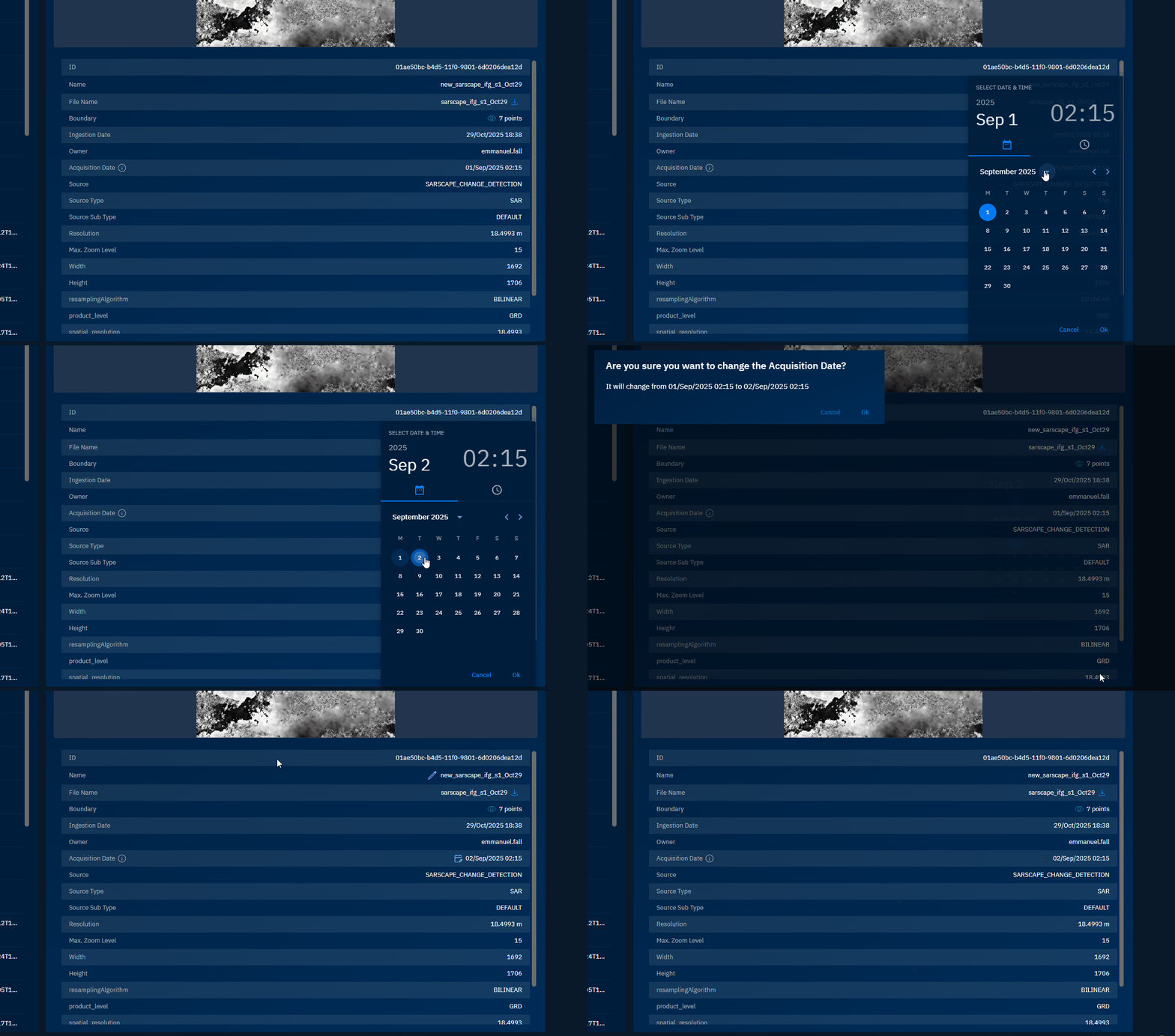
The parameters of the file are successfully changed in the platform.